If it's the first time that you are on this webpage read on how to install and use the WebMatrix Applet.
1 .Installation
2. How to use
3. Important Attributes
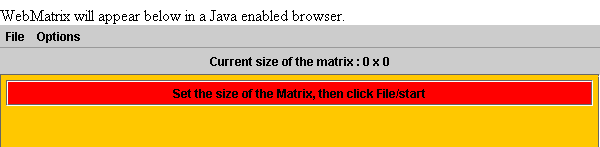
Click on the Link above and wait if you can see something similar to the image below. Please accept the request of permission from the applet, otherwise it won't work. The applet page will open in a new window, so that you can look at these page and use the applet at the same time.
If yes, you are lucky and can skip the rest of the installation.
If not here is an description what to do if you use the Internet Explorer, though this applet has worked in tests with Internet Explorer, Mozilla, Opera and Netscape.
Solution one : You are owner of the computer and have a direct connection to the internet, in this case you can click on the link below and install the Java Plugin.
english : http://www.java.com/en/
and click on "Get it now"
german : http://www.java.com/de/index.jsp
and click on "jetzt Holen".
Solution two : You do not own the computer and/or are connected through a big network, for example of a university. Click on the link below and install the indicated file.
J2SE JRE(Java 2 Standard
Edition Java Runtime Environment) : http://java.sun.com/j2se/1.4.2/download.html
,
download this J2SE v 1.4.2_04 JRE includes the JVM technology (15 MB)
If you none of the solutions worked send me an email, Martin Raab, maolra9@yahoo.de .
You have to know what a matrix and its operations are, as this will not be explained in the program.
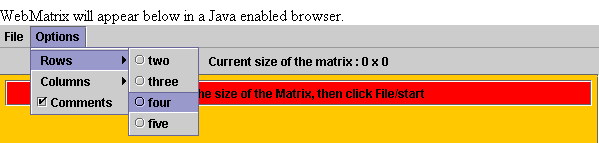
At the beginning you have to indicate which size the matrix should have you want to work with. To set the numbers of rows and columns click the corresponding entries in the options menu, as shown below.
After this is done, click Start in the File menu. You will then see something similar to the picture below. Each of the white fields is a textfield where you can enter the corresponding values of the matrix you want to work on. As there is not automatic calculation, you can enter whatever you want.
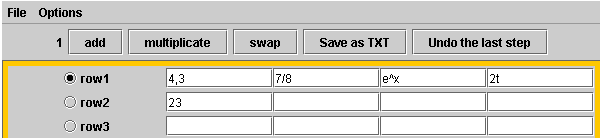
At the top of the screen you now have five buttons which should be self explaining.
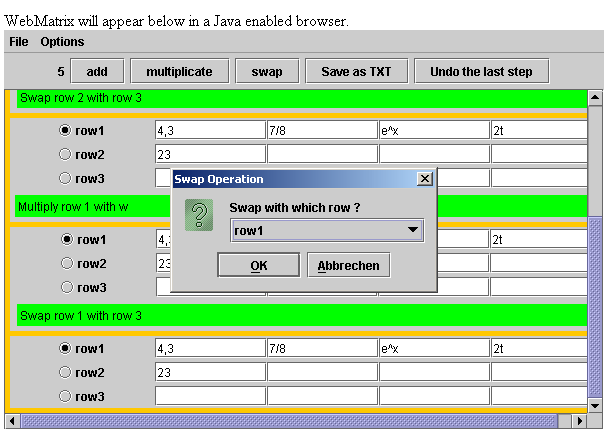
If you click on of the operations, dialoag boxes as shown below will pop up and asking for the parameters of the operation. Note that the currently checked row is always the row where the operation starts. The start row has always to be above the second row of the operation (You can't add row 3 to row 1, but row 1 to row 3). This is no restriction as you can swap rows.
If you have finished your matrix calculation click Save as Txt to store the information in a txt file. Note that you have to save the files with the ending .txt, ie. "test" is wrong, but "test.txt" is right. The information from the txt files can then be added to your emails using copy and paste.
© Martin Raab April 2004, maolra9@yahoo.de